A familiar sender name isn’t proof that an email is safe. Phishing is a deceptive message that pretends to come from a trusted person or organization to steal information or prompt a risky click; knowing how to spot a phishing email means checking the actual address and request, not just the name in your inbox. Even a genuine contact’s account can be compromised and used to send a convincing message.
It’s reasonable to trust a colleague, vendor, or friend, but a familiar tone can make suspicious requests easy to miss. This guide explains how to spot a phishing email by checking for warning signs such as mismatched sender details, unexpected urgency, and requests for sensitive information. You’ll also learn how to assess messages from people you know, handle links, attachments, and QR codes safely, and respond if you interacted with something suspicious. Calm checks, not guesswork, help you decide what to do next.
Key Takeaways
- A familiar name can hide a compromised account. Verify unexpected requests through a separate, trusted channel.
- Report suspicious work messages to your IT or security team, then delete them without replying or forwarding.
- Inspect link destinations and treat unexpected attachments and QR codes with caution; go to the official site directly when in doubt.
- Look beyond spelling mistakes: mismatched sender details, pressure to act, and requests for sensitive information can all signal a scam.
1. Can phishing emails come from trusted contacts?
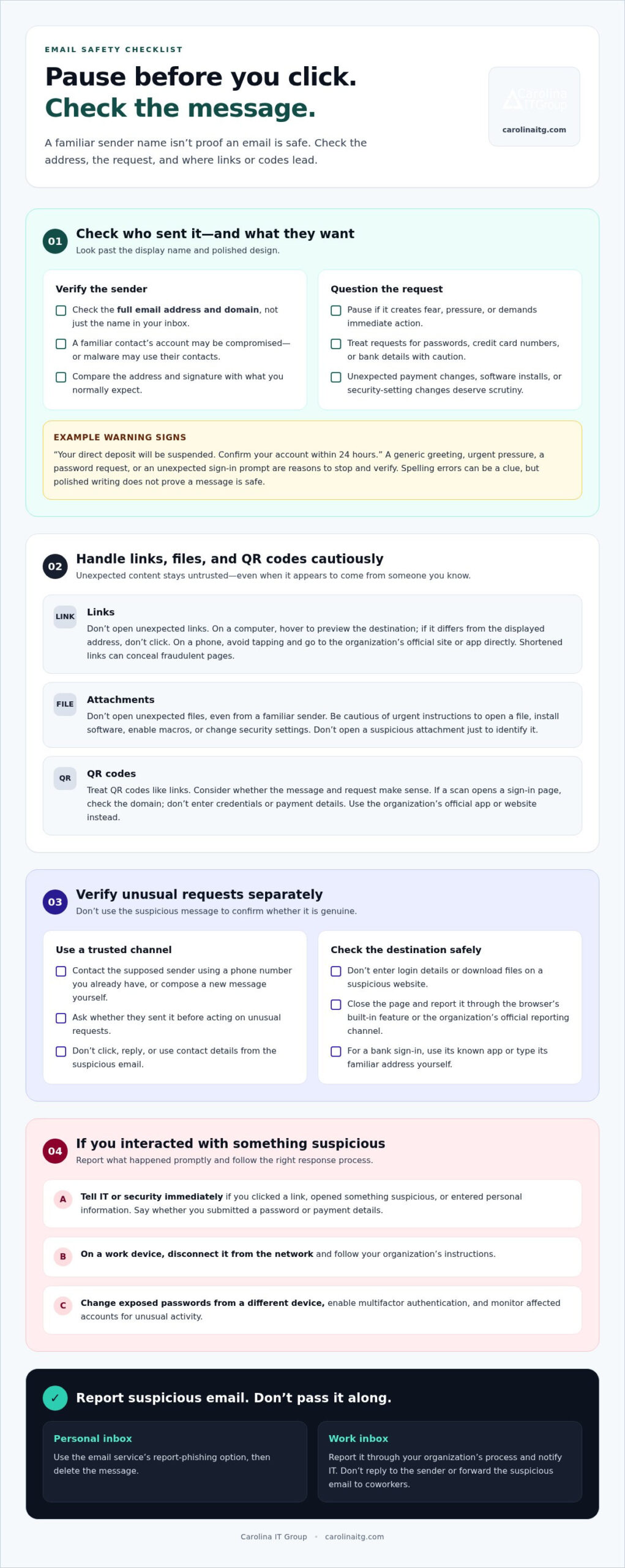
Yes. A threat actor may use a compromised account to send a convincing message from someone you know. Malware can also scan someone’s contacts and send infected messages to them. Check the full email address and domain, not just the sender’s display name. A familiar name paired with an unfamiliar domain, an unexpected request for a credit card number, or a prompt to install software calls for caution. Spelling and tone can offer clues, but polished messages can still be fraudulent.
To verify a suspicious email, contact the supposed sender through a separate, familiar channel, such as a phone number you already have or a new message you compose yourself. Ask whether they sent it, without clicking, replying to, or using contact details in the suspicious message.
For a personal inbox, use the email service’s report-phishing option near the sender’s address or in the toolbar, then delete the message. At work, report it through your organization’s designated email or security process and notify IT. Don’t forward the suspicious email to coworkers or reply to the sender. If you clicked a link or entered personal information, tell IT what happened and whether you submitted a password or payment details. This helps the team assess the risk and respond.
For a suspicious website, don’t enter login details or download files. Close the page, then report it using the browser’s built-in reporting feature or the impersonated organization’s official reporting channel. For example, if a message leads to a bank sign-in page with a changed domain, open the bank’s known app or type its familiar address yourself. Don’t click the email link again, even to investigate.
2. Safe handling of links, attachments, and QR codes
Don’t open links or attachments in unexpected messages, even if the sender looks legitimate. On a computer, hover over a link to preview its destination. If the displayed address and destination differ, don’t click. On a phone, avoid tapping the link and visit the organization’s official site or app directly. A shortened link can conceal a fraudulent page designed to collect passwords, credit card numbers, or other personal information.
Watch for unexpected attachments, pressure to open a file urgently, or instructions to install software, enable macros, or change security settings. A familiar sender doesn’t make an attachment safe, since a compromised account can send malicious files. Don’t open a suspicious attachment to identify it. Report the message through your workplace process, then delete it.
Treat QR codes with the same caution as links. Quishing uses malicious codes in emails to direct people to harmful websites. Before scanning, consider whether the message and request make sense. If you scan a code and land on a sign-in page, check the domain carefully. Don’t enter credentials or payment details; use the organization’s official app or website instead.
Phishing attempts may steal usernames, passwords, bank details, and other information that can enable account misuse or identity theft. If you clicked or opened something suspicious, tell your workplace IT or security team immediately. On a work device, disconnect it from the network and follow their instructions. Change exposed passwords from a different device, enable multifactor authentication, and monitor affected accounts for unusual activity.
For businesses that need help managing email threats, discuss email security support as part of a broader plan to reduce risk.
3. Warning signs in a phishing email example
Knowing how to spot a phishing email starts with looking at the request, not just the design. Imagine a message that appears to come from your organization’s payroll team: “Your direct deposit will be suspended. Confirm your account within 24 hours.” It uses a generic greeting, asks for a password, and includes a sign-in button. The pressure and request for sensitive information are warning signs. A legitimate organization won’t ask you to disclose your password by email.
Compare the sender’s address with the organization’s usual domain. Check whether the signature matches the sender and whether the request fits your work. An unexpected message asking you to redirect a payment or share bank details deserves scrutiny, even if it uses your correct name. Verify unusual requests through a separate, familiar channel before taking action.
Spelling and grammar errors may reveal a phishing attempt, but polished writing doesn’t prove a message is safe. To learn how to spot a phishing email, assess its context: were you expecting the message, and does the requested action make sense? An invoice that unexpectedly asks you to change payment details is a reason to pause and verify.
Be cautious of instructions to install an application, enable macros, or change security settings. These actions can expose passwords or help deliver malicious software. If a message creates fear or demands immediate action, don’t follow its instructions. Report it through your organization’s process so the security team can assess the threat.
For help strengthening your organization’s defenses against deceptive email, discuss email security support.
Carolina IT Group: Managed IT Services
Carolina IT Group helps businesses address phishing risks through Managed IT Services, Cybersecurity, and Email Security. If suspicious messages are reaching employees or your team needs a clearer response process, these services can support a consistent approach to protecting business accounts and information.
Cybersecurity helps businesses address broader threats, while Backup and Disaster Recovery supports preparation for data loss or disruption. The right next step depends on your organization’s risks and how phishing could affect daily operations.
For help protecting your business from email threats, contact Carolina IT Group.
Make Email Safety Part of Your Routine
Knowing how to spot a phishing email is a useful first step. Lasting protection comes from making careful email habits part of everyday work. Encourage employees to pause before acting on unexpected requests and ensure they know how to report concerns internally. A clear, familiar process helps people respond consistently instead of making decisions alone under pressure.
For a business-wide approach in Greenville, Raleigh, or Wilmington, Carolina IT Group offers Managed IT Services, Cybersecurity, and Backup and Disaster Recovery. These services can support your organization’s broader efforts to protect its systems and prepare for disruption. Consider whether your current safeguards and response plans suit the way your team works.
Ready to discuss practical cybersecurity support for your business? Contact Carolina IT Group to start the conversation. Small, steady steps can help your team work with greater confidence.
Frequently Asked Questions
What is phishing?
Phishing is a deceptive attempt to get someone to reveal information or take an unsafe action by impersonating a trusted person or organization. It can arrive through email, text, social media, or a phone call. For example, a fake delivery notice might prompt you to share account details on a website controlled by an attacker.
Can phishing emails come from trusted contacts?
Yes. A criminal who gains access to a coworker’s or friend’s account can send messages from their real email address. Treat an unusual request as a reason to verify, even when the sender’s address is familiar. For instance, call your coworker using a number already saved in your contacts before acting on a request to change payment details.
What Can Happen if I am Tricked by a Phishing Email?
Depending on what you shared or opened, an attacker could access accounts, misuse payment details, steal personal information, or infect a device. If you entered a password, change it from a different device and enable multifactor authentication. Contact your bank or card issuer if you shared financial details, and monitor affected accounts for transactions or settings you don’t recognize.
What Should You Do If You Get a Suspicious Email?
Don’t reply, download files, or use contact details included in the message. Report it using your email provider’s phishing option; at work, follow your organization’s reporting process and alert its IT or security team. If the message impersonates a company, open its official app or website independently to find the appropriate reporting channel. Delete the email after reporting.
What are Signs of Falling for a Phishing Email?
Unexpected password-reset alerts, unfamiliar account logins, changed account settings, or transactions you didn’t make can indicate misuse. A sudden increase in spam may also follow an email-account compromise. If your browser starts redirecting unexpectedly or displays unwanted notifications, stop using the affected page and seek help securing the device and accounts. Report work-related signs to your organization’s IT team.

President & CEO
I hope you enjoyed this article. My mission is to take your stress away from dealing with IT problems. Call (252) 565-1235 or send me a message at our contact us page if you have a question, comment or want help.