
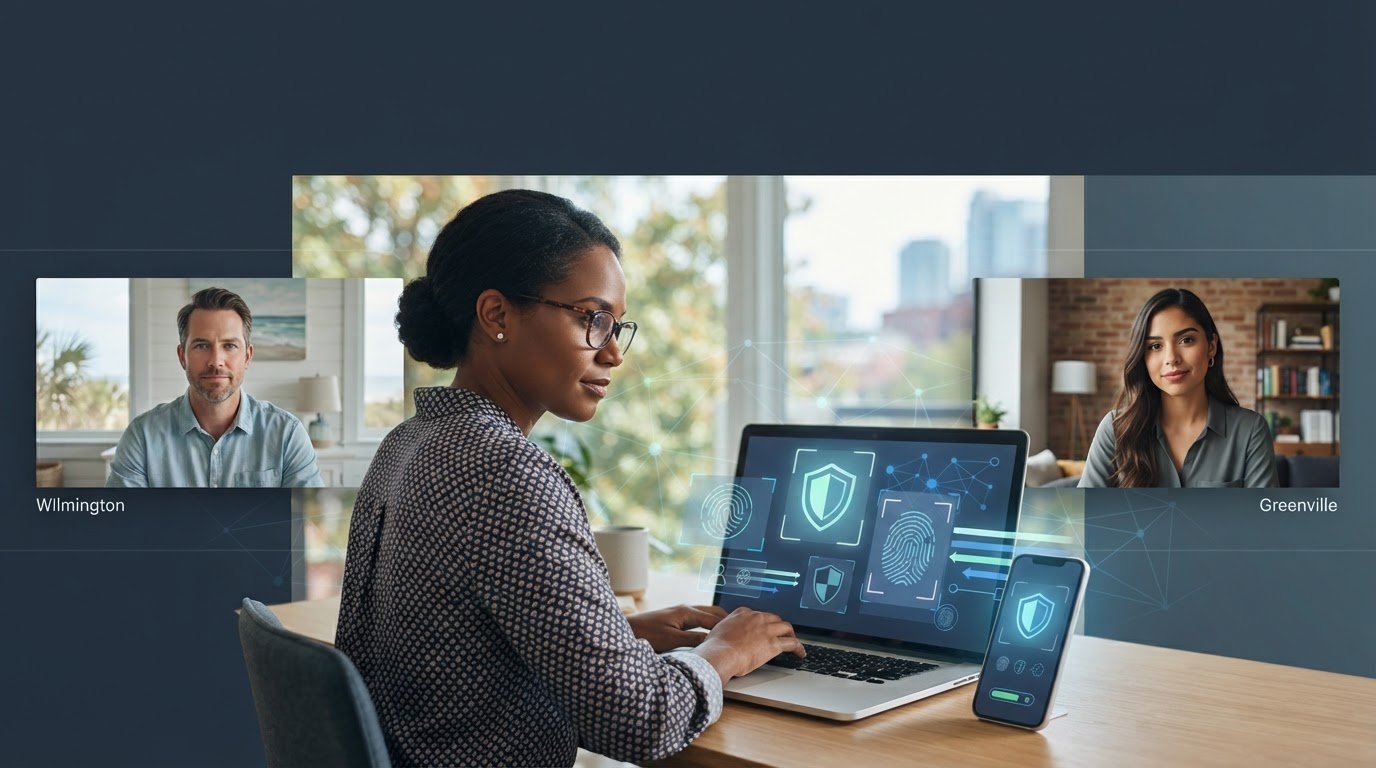



Stronger remote security shouldn’t make every workday harder. Securing remote employee access means helping staff reach the systems they need while limiting access to authorized people and devices. The challenge is balancing those protections when employees use different devices, applications, and networks.
A practical approach starts with knowing who can access each system, then setting clear rules for sign-ins, devices, and permissions. This guide walks through those steps and explains how to keep access current as roles and business needs change. The goal is to protect company systems and information without making routine work unnecessarily difficult.
Key Takeaways
- Securing remote employee access means letting people reach the business systems they need while limiting entry to authorized users.
- Start by mapping who can access each system, then use individual accounts, multi-factor authentication, and role-based permissions.
- Choose between VPN and ZTNA based on the applications employees use, their work patterns, device management, and your ability to monitor access.
- Review access regularly so role changes and outdated permissions don’t leave unnecessary openings.
What does securing remote employee access actually require?
Securing remote employee access means controlling how staff reach business systems from outside the workplace. Employees need convenient access to the files and applications required for their jobs, while the business needs to prevent unauthorized access. Too much friction can disrupt work; convenience without safeguards can expose systems and information.
A VPN can create a protected connection, but it doesn’t confirm that the person signing in is the right employee, that the device is secure, or that the employee should have access to every system. A stronger setup combines identity checks, device safeguards, and appropriate permissions, then reviews them as the business changes.
Why passwords and a VPN alone may not be enough
If an attacker obtains an employee’s password, they may try to use it to access business systems, including through a VPN. Multi-factor authentication (MFA) adds another sign-in check, such as a code or approval on a separate device. Least-privilege permissions limit each account to the information and tools needed for that person’s role. Keeping work devices protected and updated adds another safeguard at the point of access.
Secure remote access depends on identity, device, and permission controls working together. Set out the expectations in a written policy covering approved connection methods, user responsibilities, and sign-in requirements. A Remote Access Policy outlines these kinds of rules. Review access when roles change and remove permissions that are no longer needed. Ongoing oversight, supported by managed IT security, helps keep protections aligned with how your team works.
How to secure remote employee access: a practical setup sequence
A clear sequence makes securing remote employee access easier to manage. Begin with the systems employees actually use, then apply controls and keep them current.
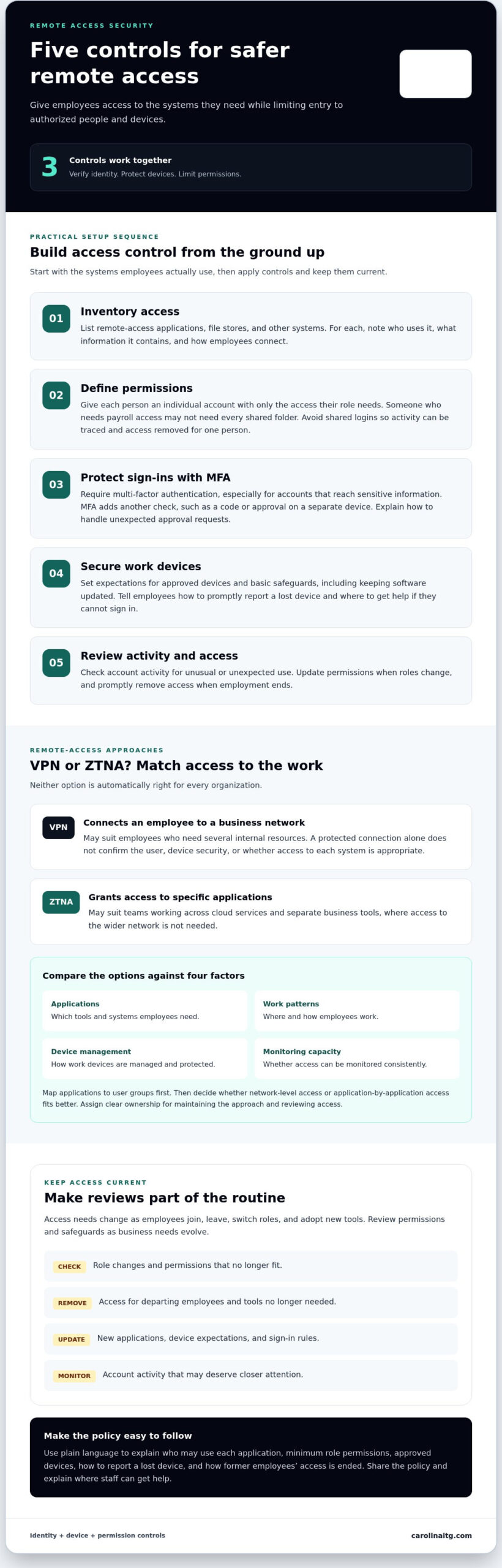
- Inventory access. List business applications, file stores, and other systems employees reach remotely. For each system, note who uses it, what information it contains, and how employees connect.
- Define permissions. Give each person an individual account and only the access their role requires. For example, an employee who needs payroll access may not need access to every shared folder. Avoid shared logins, which make it harder to trace activity or remove one person’s access.
- Protect sign-ins. Require multi-factor authentication (MFA), especially for accounts that can reach sensitive information. Explain the sign-in steps and what employees should do if they receive an unexpected approval request.
- Secure devices. Set expectations for approved work devices and basic protections, such as keeping software updated. Tell employees how to report a lost device promptly and who to contact if they cannot sign in.
- Review activity and access. Check account activity for unusual or unexpected use. Update permissions when someone changes roles, and promptly remove access when employment ends.
Build an access policy employees can follow
Use plain language to explain who may use each application, the minimum permissions needed for each role, which devices are approved, and how to report a lost device. Include a clear process for ending former employees’ access. Share the policy with staff and explain where to get help, so security steps don’t become guesswork or an avoidable delay.
Access controls need attention after setup, too. Ongoing managed IT support can help keep access practices aligned as staff, devices, and business needs change. If you’re reviewing your approach, talk with our team about your access needs.
Choosing a remote-access approach, and keeping it secure over time
A VPN and zero trust network access (ZTNA) provide remote access in different ways. A VPN typically connects an employee to a business network, which can suit people who need several internal resources. ZTNA grants access to specific applications rather than the wider network, which may suit teams working across cloud services and separate business tools. Neither approach is automatically right for every organization.
Compare the options against the applications employees need, where and how they work, how devices are managed, and whether your team can monitor access consistently. Map applications to user groups first. Then decide whether network-level access or application-by-application access better fits those needs. Whichever approach you choose, assign clear ownership for maintaining it and reviewing access.
When managed support can help maintain remote access
Access needs change as employees join, leave, switch roles, or adopt new tools. Regular reviews can reveal permissions that no longer fit, while monitoring can flag activity that deserves closer attention. Managed IT security can support this ongoing work by helping businesses maintain access controls and review security practices as needs evolve.
For businesses in Greenville, NC, Raleigh, NC, and Wilmington, NC, remote-access decisions are part of day-to-day IT and cybersecurity. Carolina IT Group provides managed IT support, cybersecurity, and network security, with proactive support and network monitoring. A useful plan accounts for both the technology and the people who rely on it.
To discuss an approach that fits your applications, workforce, and capacity to manage access, talk with a local IT expert.
Make remote access a practice that keeps pace
Remote work arrangements change over time. As roles shift and new applications are introduced, access decisions that once made sense can become outdated. Treat securing remote employee access as an ongoing business practice, with scheduled reviews to check whether permissions and safeguards still fit. Include role changes, departing employees, new applications, and device expectations on the review checklist.
Founded in 1995, Carolina IT Group provides proactive issue resolution and 24/7 network monitoring. This ongoing support can help businesses keep pace with changing technology and access needs while supporting the systems employees rely on each day.
Start by identifying which access decisions need attention and where your team needs support. Discuss secure remote access for your business with Carolina IT Group and take a practical next step toward protecting your systems.
Frequently Asked Questions
Is a VPN enough to secure remote employee access?
No. A VPN protects the connection, but it doesn’t determine whether an employee should reach a particular file or application. Someone who needs payroll access, for example, may not need access to every shared folder. As part of securing remote employee access, define what each role can reach and establish a process for ending active sessions if an account may be compromised.
Can employees securely access company files from personal devices?
They can if your policy allows it and you set practical safeguards. Decide whether employees may download work files to a personal laptop or should use a browser to view them instead. Explain how to keep the device’s software current, protect its sign-in, and report a loss. Clear rules help employees make safe choices without guessing.
What should a business do when a remote employee leaves?
Disable the person’s accounts promptly, then look for remaining access, such as active sessions, connected devices, or shared passwords they knew. Assign each step to a specific person and record completion in the departure checklist. If the employee used company equipment, arrange its return and handle business files according to your organization’s procedures.
Does multi-factor authentication make remote access completely secure?
No. MFA adds a useful sign-in check, but it can’t prevent every security problem. If an employee receives an unexpected sign-in approval request, they should deny it and report it through the designated support channel rather than approving it just to clear the notification. Include this guidance in onboarding and make sure employees know who to contact if they can’t sign in.

President & CEO
I hope you enjoyed this article. My mission is to take your stress away from dealing with IT problems. Call (252) 565-1235 or send me a message at our contact us page if you have a question, comment or want help.



Leave a Reply
You must be logged in to post a comment.