To understand how to improve office wifi speed, start with a professional review of channel congestion, router placement, connected devices, and the internet connection itself; a less crowded channel can help when nearby routers compete for the same space, while channels 1, 6, and 11 are common options to assess, and the 2.4 GHz and 5 GHz bands offer different balances of range and speed.
The right fix depends on where slowdowns happen and which devices need reliable access. A network professional can help you determine how to improve office wifi speed by assessing whether to adjust channels or bands, add a mesh network or extender, or contact your internet provider, then explain what each option can address and how to tell whether the problem is inside the office or with the service entering it.
Key Takeaways
- Compare connection results across devices and times to help pinpoint whether slowdowns affect the whole office or specific areas.
- Learn why channels 1, 6, and 11 are worth assessing, and how the 2.4 GHz and 5 GHz bands differ in range and speed.
- Understand when a mesh network or extender may help, including why placement affects the signal it can deliver.
- Recognize signs that the issue may be with your internet service, such as slowdowns that persist across the office network.
How to Test Your Office Wi-Fi Speed
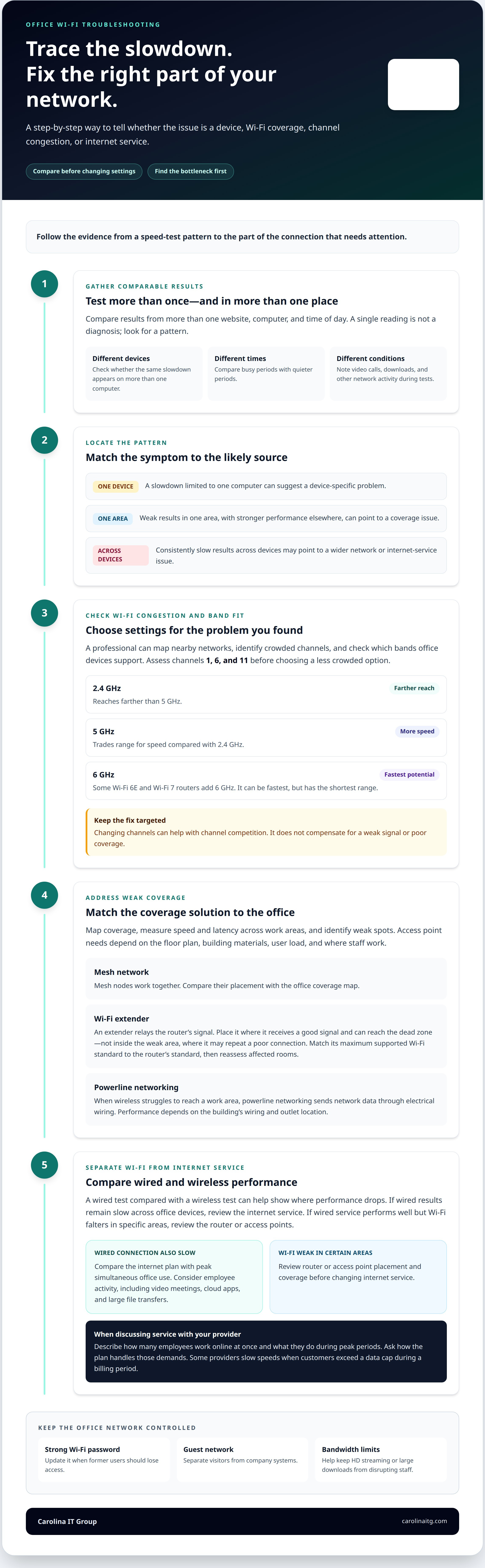
A speed test is more useful as a comparison than as a single reading. Check results on more than one website, computer, and time of day. These comparisons can show whether slow performance affects one device, one part of the office, or the network more broadly. When deciding how to improve office Wi-Fi speed, look for a pattern rather than relying on one isolated result.
The assessment should distinguish Wi-Fi limitations from a problem with the internet connection entering the office. Compare a wired test with a wireless one to see where performance drops. Test conditions matter too: video calls, downloads, and other network activity can affect results. These comparisons help separate a local signal issue from a wider service concern. Look for a consistent pattern rather than treating one test result as a diagnosis.
- Consistently slow results across devices may point to a wider network or service issue.
- A slowdown limited to one computer can suggest a device-specific problem.
- Weak results in one area, with stronger performance elsewhere, can point to a coverage issue.
Use these comparisons to target the next step instead of changing settings at random.
Changing Wi-Fi Channels and Bands
Nearby routers can crowd the same Wi-Fi channel and slow office connections. A professional checks channel use, then assesses channels 1, 6, and 11 and supported bands.
-
How a professional identifies and addresses sources of Wi-Fi congestion
Map nearby networks and identify crowded channels before changing settings. Routers may keep using their setup channel even after it becomes busy. Check which bands office devices support and assess nearby equipment for interference. This helps distinguish channel competition from weak coverage: change channels to address congestion, not to compensate for a weak signal.
-
How a professional selects and changes Wi-Fi channels
Ask the professional to compare channels 1, 6, and 11, then choose a less crowded option. Router menus vary, so the professional makes the change and checks whether congestion eases. Band selection depends on device support and office layout. The 2.4 GHz band reaches farther; 5 GHz trades range for speed. Some Wi-Fi 6E and Wi-Fi 7 routers add 6 GHz. It can be fastest, but has the shortest range.
A less congested Wi-Fi channel can help when multiple routers compete on the same channel. Many routers scan for an open channel during setup, then continue using it even if it later becomes crowded.
Mesh Networks and Wi-Fi Extenders
A professional maps Wi-Fi coverage, measures speed and latency across work areas, and identifies weak spots. Access point needs depend on the floor plan, building materials, user load, and where staff work.
- Compare mesh placement with the office coverage map. Mesh nodes work together, while an extender relays a router’s signal. Place an extender where it receives a good signal and can reach the dead zone. Placing it inside the weak area can repeat a poor connection.
- Match an extender’s maximum supported Wi-Fi standard to the router’s standard for the fastest possible connection. After placement, assess coverage in the affected rooms and adjust the location if needed.
- Consider powerline networking when a wireless signal struggles to reach a work area. It sends network data through electrical wiring, but performance depends on the building’s wiring and the outlet location.
- Secure office access with a strong Wi-Fi password, and update it when former users should lose access. A guest network separates visitors from company systems. Bandwidth limits can keep HD streaming or large downloads from disrupting staff. Network security controls help maintain that separation.
Contacting an Internet Service Provider
Compare your internet plan with peak simultaneous office use. Employee count matters, but the mix of tasks helps determine capacity. If wired connections are also slow, review the internet service.
-
Assess Internet Plan Speed Needs
Tell your internet provider how many employees work online at once and describe peak tasks, such as video meetings, cloud apps, and large file transfers. Ask how the plan handles these demands. Compare performance during busy and quiet periods. Headcount helps frame demand, but simultaneous activity and work type determine whether available bandwidth is sufficient. Don’t select a plan based on staff numbers alone.
-
How a professional decides whether to upgrade office Wi-Fi equipment or internet service
Separate internet service limits from equipment problems. If wired results remain slow across office devices, review whether the plan matches peak demand. Some providers slow speeds when customers exceed a data cap during a billing period. If wired service performs well but Wi-Fi falters in specific areas, review the router or access points. Upgrade internet service only after identifying the bottleneck, so the change addresses the actual cause.
Compare speed test results from more than one website, computer, and time of day. Wired connections are faster than business Wi-Fi.
Carolina IT Group
Carolina IT Group helps businesses investigate persistent Wi-Fi slowdowns by assessing the network alongside the work it needs to support. If channel changes, coverage adjustments, or an internet plan review haven’t resolved the issue, a broader IT assessment can help identify the next step.
Share where staff experience dropouts, which tasks are affected, and whether the problem is constant or limited to busy periods. These details connect network performance to everyday needs, such as cloud applications, video meetings, and access to company files. The goal is to address the underlying issue rather than add equipment without a clear reason.
Through Managed IT Services, Carolina IT Group can support ongoing business technology needs, while its technicians’ vendor certifications inform their technical work. Cybersecurity and Backup and Disaster Recovery can also help protect business systems and data as connectivity supports daily operations. The right focus depends on what the assessment finds.
If unreliable Wi-Fi is interrupting work, contact Carolina IT Group to discuss your office’s needs.
Frequently Asked Questions
How do professionals place routers and access points to improve office Wi-Fi coverage?
Place equipment to reduce barriers between the signal and the work areas that need coverage. Consider walls, office layout, and where employees use laptops or phones, rather than choosing a spot based only on convenience. A router tucked inside a closet can lose signal strength. After placement, assess coverage in rooms where calls drop or applications respond slowly.
How does a professional choose the best Wi-Fi channel and reduce interference in an office?
Assess channel congestion where staff rely on Wi-Fi, then select a less crowded option. Nearby routers can compete for the same channel, so the quietest choice may vary across an office. Check for unauthorized network users or guest activity that consumes bandwidth. Evaluate the results during typical office use, not only when the space is quiet.
How does a professional determine whether an office should use 2.4 GHz, 5 GHz, or 6 GHz Wi-Fi bands?
A professional matches band choices to the office’s devices, coverage needs, and router capabilities. Older equipment may only connect to 2.4 GHz, so moving every device to a newer band can leave some unable to connect. A 6 GHz-capable router can serve compatible devices, while the office layout and distance from access points shape where each band is practical.
How does a professional configure router and access point settings for faster office Wi-Fi?
Review channel and band settings alongside the office’s mix of devices instead of applying one setting everywhere. Set up a guest network to keep visitors separate from company systems, then limit guest bandwidth if streaming or large downloads disrupt staff work. After making changes, assess connections in the areas employees depend on and adjust settings if performance remains uneven.

President & CEO
I hope you enjoyed this article. My mission is to take your stress away from dealing with IT problems. Call (252) 565-1235 or send me a message at our contact us page if you have a question, comment or want help.